
Hotspots
A hotspot is a pin on your image that is linked to one product. Tapping it on the storefront opens a small product card.
Every plan allows unlimited hotspots per image, including Free.
- Opening the Hotspot Editor
- Adding a Hotspot
- Moving a Hotspot
- Editing or Deleting a Hotspot
- Product Details Are Snapshotted
- What Shoppers See
- Click Tracking
- Tips for Good Hotspots
Opening the Hotspot Editor
Go to Images and click an image title, or open it right after creating it. The editor shows your picture at full width with any existing pins on top of it.
Adding a Hotspot
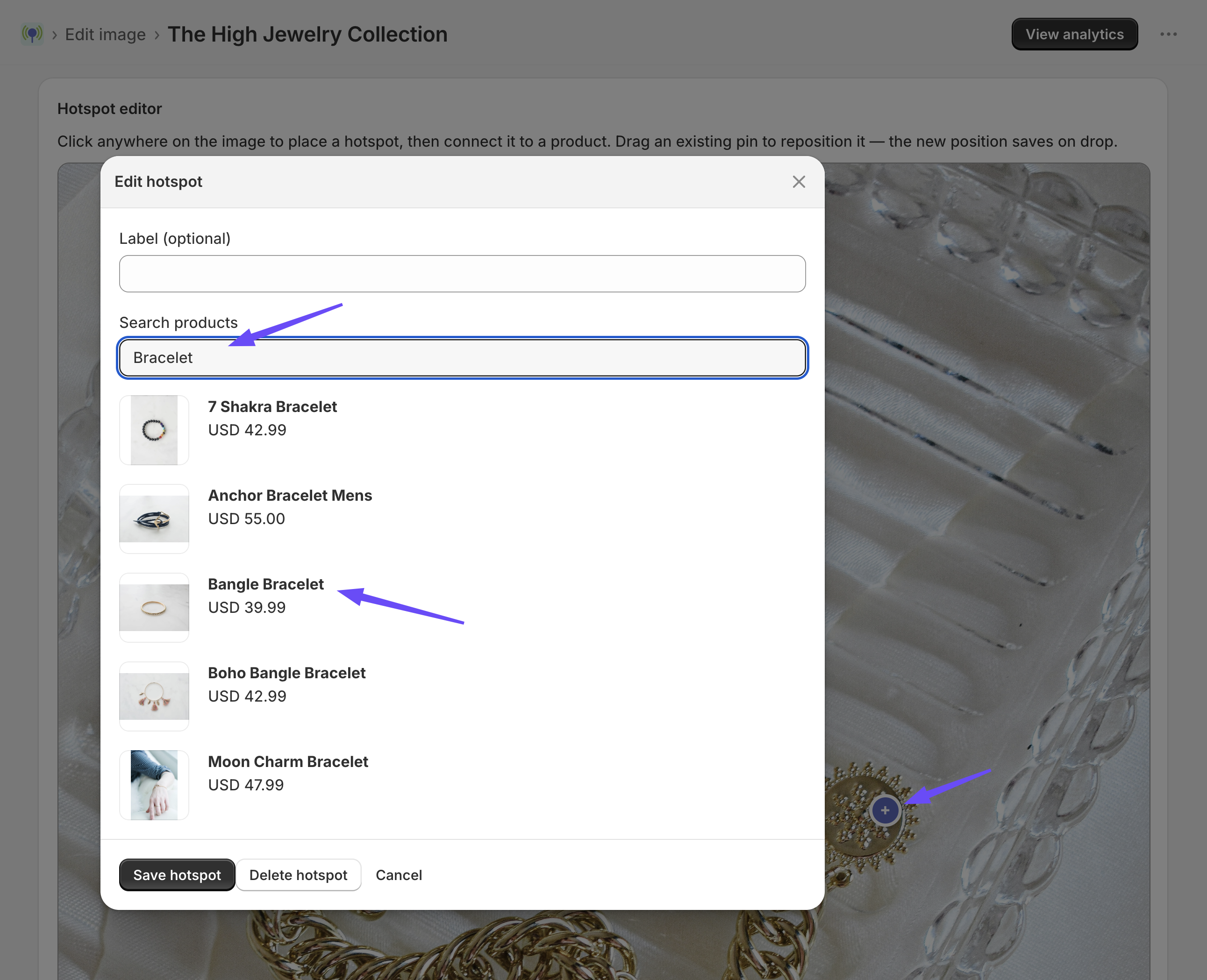
- Click anywhere on the image where you want the pin. A form opens.
- Label (optional) — short text shown on the pin itself. Leave it blank and the pin shows a + instead. Keep labels to a word or two; the pin is small.
- Product — type in the search box to search your catalogue. Results appear as you type. Click the product you want.
- Click Save.
The pin appears immediately. Repeat for every product in the photo.
Tip: Blank labels (plain + pins) keep a busy lookbook clean. Use labels when a shopper would not otherwise know what a pin refers to — “Sofa”, “Lamp”, “£29”.
Moving a Hotspot
Two ways, both saved automatically:
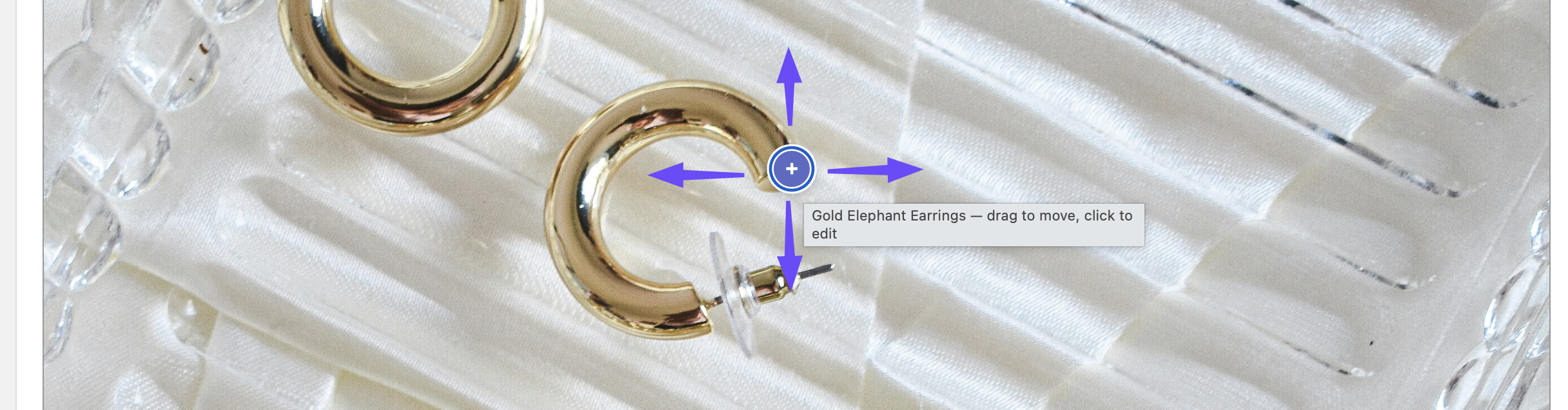
Drag — click and hold a pin, then drag it. A small movement is treated as a click (which opens the pin), so drags need to travel a few pixels before they register as a move. This means you can never accidentally nudge a pin just by opening it.
Arrow keys — select a pin and use the arrow keys:
| Keys | Step size |
|---|---|
| Arrow keys | 1% of the image |
| Shift + arrow keys | 0.25% of the image — for fine alignment |
Positions are stored as a percentage of the image’s width and height, so a pin stays in the right place at every screen size, on desktop and mobile alike.
Editing or Deleting a Hotspot
Click a pin in the editor to open it, then:
- change the label,
- search and pick a different product, or
- Delete the hotspot.
Deleting a hotspot also deletes its click history. That history cannot be recovered, so if you only want to change what a pin points to, edit it rather than deleting and re-adding it.
Product Details Are Snapshotted
When you attach a product to a hotspot, the app saves a copy of that product’s details at that moment:
- title
- handle (used to build the product link)
- image
- price
The storefront card renders from that copy, which is why hotspot cards load instantly without extra requests to your store.
Important: If you later change a product’s price, title, or featured image in Shopify, the hotspot card will keep showing the old values. To refresh it, open the hotspot in the editor, re-select the same product, and save.
Two things are always live, and never stale:
- Variant options and stock status — read from your store when the card opens, so sold-out variants are always shown correctly.
- The product link — always points at the product’s current page.
What Shoppers See
Tapping a pin opens a product card containing:
- the product image
- the product title
- the price
- a View product link (opens in the same tab or a new tab, depending on the block setting)
- Add to cart, if enabled — Ultimate plan
When a product has more than one variant, the card shows a variant dropdown. Sold-out variants are listed but cannot be selected.
The card positions itself to stay inside the visible area of the screen, so pins near an edge still open a fully readable card.
The full-page popup
If Open image in full-page popup on click is enabled on the block, shoppers can click the image itself, or tap the expand control (⛶) in its corner, to view it enlarged in a full-page popup. Every hotspot works inside the popup exactly as it does in place — pins open, product cards appear, and clicks are tracked.
This is worth switching on for detail-heavy photography: a wide lookbook or room shot that is small in the page layout becomes properly browsable, and pins that would overlap at thumbnail size get room to breathe.
The setting is available on both the Shoppable Image and Shoppable Collection blocks, and is on by default.
The full-page popup is an Ultimate plan feature. On the Free plan the image and its hotspots still render and work normally, but the popup does not open and no expand control is shown. You can preview it inside the Theme Editor before deciding to upgrade. See Billing & Plans and Theme Blocks.
Click Tracking
Every time a shopper opens a pin, the app records a click. That is what feeds the Analytics pages. Tracking works on every plan, including Free.
Only the hotspot’s ID, your shop domain, and a timestamp are recorded — no customer information of any kind. See the Privacy Policy.
Tips for Good Hotspots
- Place pins on the product, not near it. Shoppers tap what they can see.
- Don’t overcrowd. More than about eight pins on one image starts to look noisy on mobile. Consider splitting the shot across two images in a collection.
- Watch the pin colour. The default indigo works on most photos, but set a contrasting pin colour in the block settings if your image is dark or busy — see Theme Blocks.
- Check it on a phone. Most storefront traffic is mobile, and pins that look well spaced on a desktop can overlap on a narrow screen.